
A Mac player needs the correct publisher and an appropriate macOS build. The Apple TV version of an app, an iPad listing and a desktop Mac installer are different distribution choices. Begin with the route the developer documents for the actual Mac.
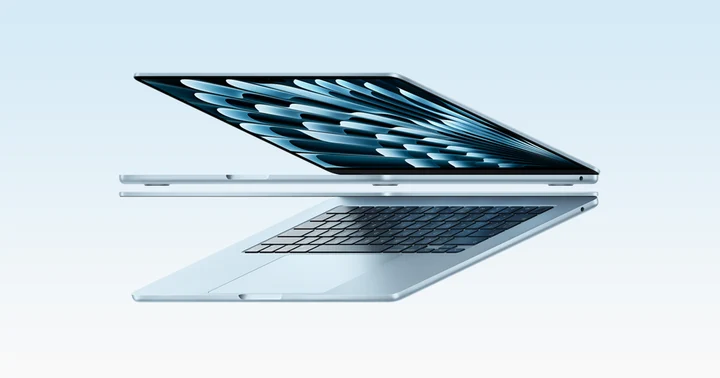
Identify the Mac architecture and requirements
Check the Mac model, processor and macOS version, then compare them with the player’s requirements. VideoLAN, for example, publishes separate Apple Silicon and Intel downloads. The presence of an Apple logo on a player webpage does not by itself establish which operating system or architecture that download targets.
Use the App Store or verified publisher
A disk image is a packaging format, not a safety certificate. macOS checks downloaded applications through its security mechanisms. If a warning appears, establish the developer and package provenance before proceeding instead of treating Allow Anyway as a standard setup step.
- Find the actual Mac listing or the developer’s desktop download page.
- Review the publisher, supported macOS release and any application charge.
- Choose the appropriate build and follow its normal signed installation process.
- Launch the installed app from Applications and inspect the available media or account controls.
Match the desktop app’s login method
Some Mac players accept a network-media source; others provide a dedicated service-account form. Use the method documented for that edition and keep the issued details private. Do not assume that a television screenshot describes the Mac app’s input fields or that a player feature upgrade includes IPTV USA.
Check local operation and the intended task
Confirm that the app starts, its controls respond and it can open the type of source it documents. Then assess the issued account or permitted media task separately. A successful Mac installation is not a hands-on IPTV USA compatibility result and does not prove AirPlay support for all content.
Preserve a precise problem description
Separate a failed download, a macOS security warning, an app crash and an account rejection. Record the app version and Mac architecture with the exact message. Reinstalling a different edition or bypassing a warning can change the problem without explaining its cause. Keep account details secure before removing app data.
Useful answers
Does an iPad App Store listing prove Mac support?
No. Check that listing’s explicit Mac compatibility or use a developer-provided desktop Mac build.
Should I disable Gatekeeper to install a player?
No generic guide should require that. Investigate the publisher and follow the current verified distribution route.
Why does the publisher offer Intel and Apple Silicon downloads?
They target different Mac processor architectures. Choose the build documented for the actual computer rather than guessing from the app name.