
Find the model and installed operating system before selecting a Fire TV installation guide. Fire TV is a hardware family: some models run Android-derived Fire OS, while newer products use Vega.
A product nickname such as “4K stick” leaves out the detail that determines the software route. A replacement device can look familiar and still need a different app decision.
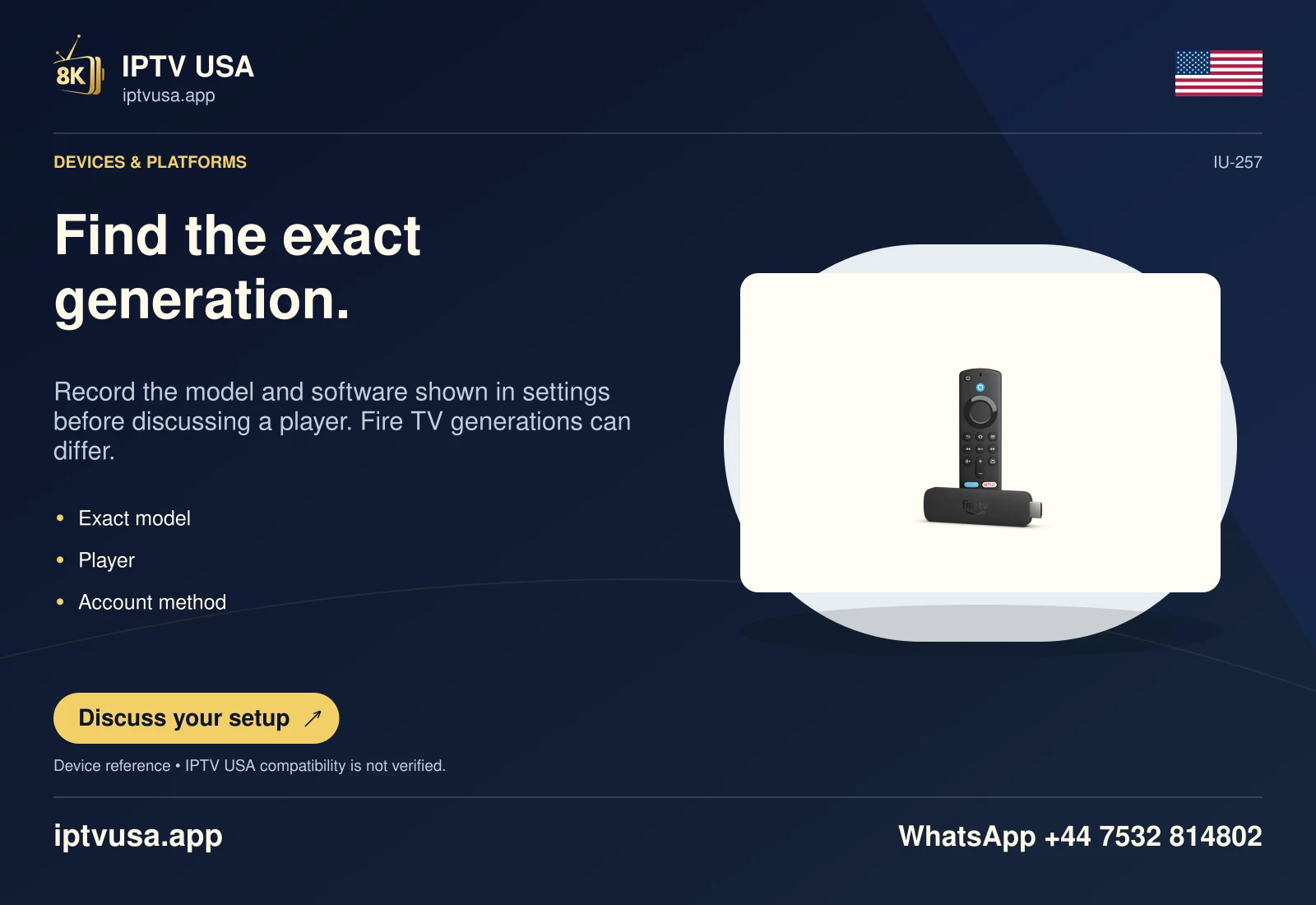
Capture the actual device information
Open the device-information area available under My Fire TV or Device & Software, and record the model and installed software version. Menu wording can vary with the Fire TV interface. Use what the device reports rather than a shop listing for a similar-looking product.
Keep a short support note containing the retail model, generation, installed OS and player edition. Serial numbers and account details are unnecessary for a public screenshot; crop or redact them before sharing the useful system information.
- Open Fire TV Settings.
- Find My Fire TV or Device & Software and its About information.
- Record the model and software version without publishing private identifiers.
- Compare that model with Amazon’s current device table.
Choose the correct software branch
Amazon lists Fire TV Stick 4K Plus (2025) under Fire OS 8, while 4K Select (2025), Stick HD (2026) and Stick 4K third generation (2026) appear under Vega. The model distinction is more useful than assuming that every device with Fire TV branding accepts Android packages.
Vega’s selected cloud-app programme does not turn every APK into a supported local installation. An application must have a route actually offered to that device. An old tutorial showing Android unknown-source settings can simply be the wrong tutorial for the hardware in front of you.
| Observation | Next decision |
|---|---|
| Fire OS reported | Find the identified app’s Fire TV/Fire OS distribution route. |
| Vega reported | Check actual Vega Appstore availability. |
| Model still uncertain | Resolve the hardware identity before package installation. |
Use the information to describe a failure
An app missing from the store, a package that cannot install and a player that rejects an account are different problems. Add the exact app name and error only after identifying the hardware. This avoids treating an account error as proof that the operating system is incompatible.
Store availability, software installation and viewing-service authorization still need their own checks. If the reported minor OS version differs from an online specification, preserve the installed value and consult the current update record instead of altering it in the support note.
Useful answers
Can the remote identify the OS by itself?
No. Similar remote designs are used with different products. Read the device information and exact model.
Should I post the full serial number?
Not in a public support post. The retail model, generation, OS and application error normally provide the useful context without exposing the identifier.
Does 4K in the model name prove stream quality?
No. The device name describes hardware capability, not the native resolution or availability of an individual source.